

As a top-tier free online PDF editor, DocHub allows you to seamlessly edit PDF files directly in your browser. You can replace existing text, add new content, underline key sections, and adjust formatting with ease.
- The new Edit Text feature in DocHub helps you change supported PDF text in place.
- DocHub’s Add Text feature lets you insert new content as a text box.
- DocHub also allows you to add annotations, images, and links
- For teams using Google Drive and cloud storage, DocHub keeps PDF editing, sharing, signing, and document updates in a single platform.
Why is editing text in a PDF file challenging?
Editing a PDF file involves altering its original content, such as correcting typos, updating information like company names or dates, or removing obsolete text.
This capability is distinct from simple annotation. While many tools allow users to add comments, highlights, or text boxes, these features merely overlay the document without changing the underlying content. A true PDF editor enables you to modify the document’s core text. In addition to inserting and replacing content, a true PDF editor also allows you to delete text that already exists in a document.
How does editing work in DocHub?
DocHub includes both text editing in the PDF format and annotation tools. So the right method depends on what you want to do:
- If you need direct text modification in supported PDF files, use Edit Text.
- If you need to insert missing content, use Add Text and create a text box.
- If you want to emphasize key information, use markup tools to underline text, highlight it, or add comments.
The Edit Text feature enables formatting synchronization by automatically matching the original font, size, and color of the letters you are editing. The tool also manages text reflow, automatically adjusting character placement and spacing around deleted areas. We described the technical details of true editing in a blog: How text editing and addition work.
Steps to edit PDF text with DocHub’s tool:
Once logged in to your DocHub account and having uploaded the PDF file:
- Open the PDF in DocHub’s editor
- Select the Edit Text tool from the toolbar
- Hover over the page and look for a yellow border around the field
- Click into the editable area indicated by the border
- Make all the needed alterations and adjustments
- Click outside the box to save the changes you have made

7. Make other needed alterations and choose the Download or Export option to save or share the document.

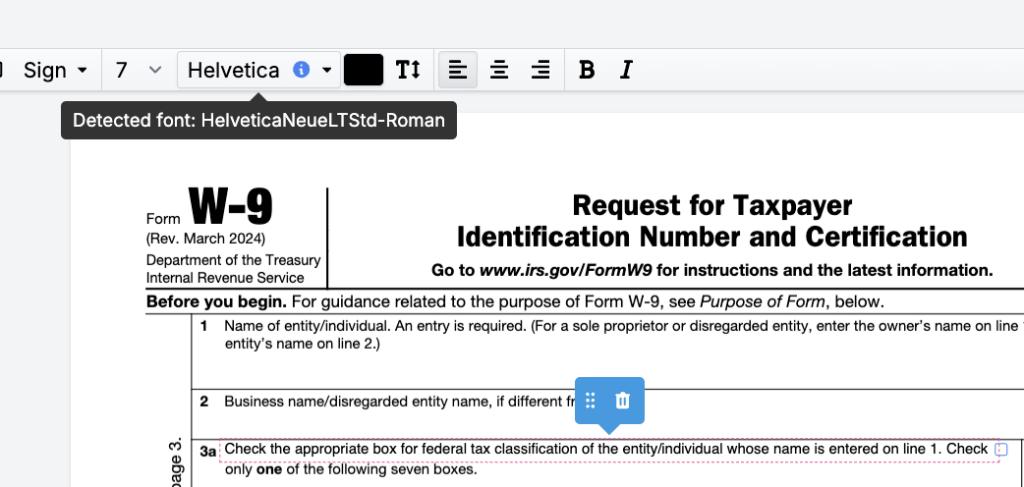
When you click into editable text, DocHub attempts to auto-detect the font. The feature uses the Google Fonts library, which includes about 1,800 fonts.
How do you add new text boxes to a PDF?
In DocHub, open the file, navigate to the correct page, and select the Add Text icon in the toolbar. Click where you want the content to appear, and start typing. Then adjust placement so the new text fits naturally into the page.
How do you annotate important sections in a PDF?
Annotations help readers notice the main points quickly. That may be a deadline, an approval section, a policy line, or a client instruction. In DocHub, you can easily make a section more visible by using markup tools like Highlight, Underline, Strikeout, or Draw Freehand. Simply open your file, go to the page you want to edit, and select your preferred markup option.
Use the Highlight tool to mark the important part with a color of your choice. If you need other annotation options, press H on the keyboard.

DocHub’s Underlinе tool can be used to emphasize important words or phrases.
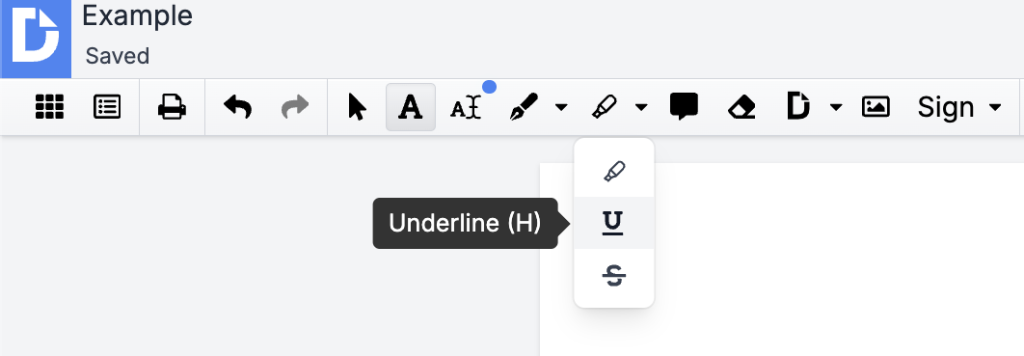
The Strikeout tool works well for marking content that needs to be deleted.

Need to annotate quickly? Use the Draw Freehand tool to underline or circle content. It’s not precise, but it gets the point across.

Note: the Underlinе and Strikeout tools are available in DocHub’s Pro plan.
Collaborating on PDFs in DocHub
With DocHub, you can easily share a PDF document with colleagues or clients by sending a secure link or inviting them directly from the platform. Set permissions to control who can view, comment, or edit the PDF, ensuring your content stays protected while allowing for productive collaboration.
DocHub also tracks changes and keeps a history of edits, so you can always be sure who made them and when. This is especially useful for teams working on shared PDF forms, business documents, or educational materials.
There’s no need to download extra software: just upload your PDF, invite collaborators, and start editing or reviewing together. With easy sharing, cloud storage integration, and support for mobile devices, DocHub is the easiest online PDF editor.
For more information about editing across devices, read our blog: PDF editing: Mobile vs. Desktop.
Which method should you use for each task?
The real-life use cases may be much wider; here’s just a list of examples you may use when you edit PDF files online:
- Use the Edit Text feature to make changes to the original text of the document
- Use the Add Text feature to insert new text
- Use the Highlight, Underline, or Strikethrough tools for emphasis
- Use font and spacing checks to format the text you have added
As an online PDF editor, DocHub also allows users to convert PDFs to other formats and vice versa, making document management and editing even more flexible.
What can prevent text from being editable?
The most common reason is that the content is rasterized or flattened into an image. In those cases, the file may still open in a PDF editor, but the actual PDF text is not available for editing.
The yellow border in DocHub gives users immediate feedback about what can be changed. If the border does not appear, the content may not support direct in-line edits.
Even in those cases, the file may still be usable. You can add words, underline sections, comment, or use other PDF tools to work with the document. But for direct text replacement, the file needs editable paragraphs, not just images of characters.
Final thoughts
When editing a PDF for business, you need a workflow that handles all text-related tasks efficiently.
DocHub combines PDF editing, signing, sharing, and form completion into one platform. With its Edit Text release, the solution now offers a direct way to update PDF files in your browser.
Get started with DocHub for free, and simplify how you edit, review, and share every PDF document!
FAQ
Can I edit existing text in any PDF?
You can edit the original content when the file contains selectable, editable text, and the tool detects it. When the feature is active in DocHub, a yellow border appears on hover to show which areas can be edited. If the PDF is image-based or has rasterized content, you may still be able to add written passages or annotate it.
How do I know whether a text area is editable in DocHub?
In DocHub, select Edit Text in the annotation panel and move your cursor over the page. If the system detects editable parts, it will show a yellow border around that area before you click. This helps you quickly decide whether to modify existing text or use Add Text instead.
What is the difference between Edit Text and Add Text?
Edit Text is for changing existing text that is already part of the PDF document. Add Text is for inserting new content with a text box when the information does not already exist in the file. In practice, one is for replacement, and the other is for insertion, depending on what the page needs.
How do I save changes after editing?
After you finish modifying an editable field, click outside the box to save the change. This step matters because the edit is not finalized until focus leaves the text area. It is a good idea to click out, then review the page before moving to the next edit.
Why does the font sometimes look slightly different after I edit text in DocHub?
DocHub uses auto-detection with the Google Fonts library, which covers many common typefaces. If the original one is proprietary or unavailable, it uses the closest visually similar fallback font instead. When that happens, a yellow triangle appears next to the font name, indicating that the exact match was not available.
Can I annotate important sections in DocHub without changing the original text?
Yes, DocHub lets you draw attention to important sections using its markup and annotation tools: Highlight, Underline, Strikeout, and Draw Freehand. This is useful when you want to emphasize a clause, deadline, instruction, or other key information without rewriting the underlying PDF content.
What should I do if a PDF is not editable?
If the original content is not editable, check whether the file is a scanned image or contains rasterized text. In that case, you can still add text, underline content, highlight text, add comments, and complete other document tasks. You need to decide whether the annotation is enough or whether you need a source file for full editing.
Is Edit Text available on all DocHub plans?
The new Edit Text feature in DocHub is Pro-only. Users on the free plan can still access other tools for document editing, signing, and sharing. If the free set of tools is not enough for your workflow, check our pricing page to find the plan that best suits your needs.