

The “add image to PDF” function is like giving your document a personal touch, whether it’s a logo, photo, screenshot, or stamp. Need to tweak it? No problem. With DocHub, you can not only add images to PDF documents, but move, resize, or remove images in a snap:
- In DocHub’s editor, choose Insert Image, and upload or paste the image.
- To edit images in PDF, place the picture on the page, then move, resize, or delete it if replacement is needed.
- Use PNG for logos and graphics with transparency, and JPG for regular photo content.
- Keep file size in mind before you upload images, especially when working with multiple images in one PDF document.
DocHub streamlines practical business workflows by bringing powerful PDF editing tools, seamless cloud saving, easy sharing, eSigning capabilities, and smooth Google Drive integration into one place. The Insert Image tool is free and available for all DocHub users.
See more information about DocHub as an online PDF editor in our blog: How to edit a PDF without installing software.
Why would you add an image to a PDF?
Most people add images to PDFs for practical reasons, not just for design. Whether it’s adding a logo to a contract, a product photo to a sales document, a screenshot to an internal guide, or a picture to a form, images play a key role in explaining, identifying, or completing the document.
With DocHub’s clean image-to-PDF workflow, you save time by skipping the hassle of rebuilding files from scratch. Simply open the existing PDF, insert the image, adjust its placement, and leave the rest of the page untouched. This is especially handy for teams managing customer documents, onboarding packets, approvals, or reusable forms, keeping workflows smooth and efficient.
How do you add an image to a PDF in DocHub?
When it comes to adding images to PDFs, speed is key. DocHub supports exactly that kind of fast, efficient workflow, helping you get the job done without holding you back.
Step 1: Upload your file
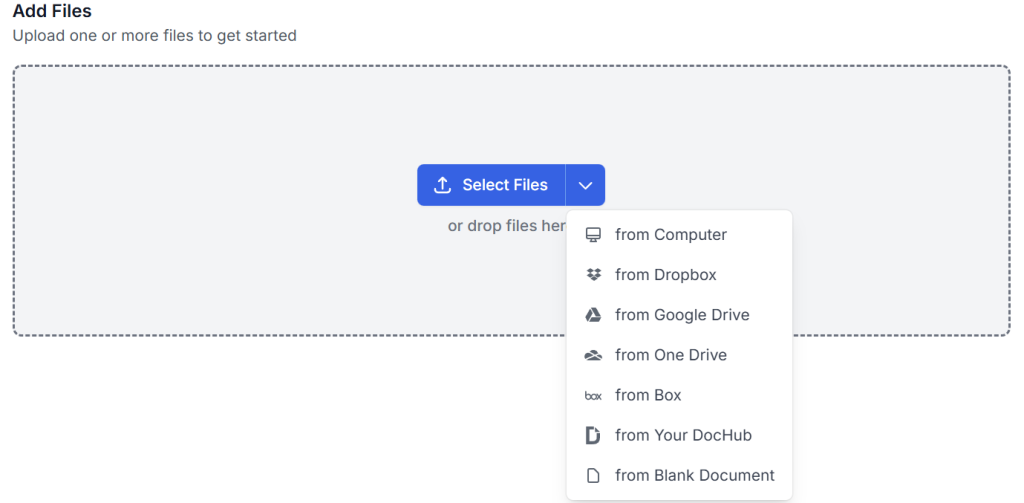
Log in to your DocHub account or create a new one for free using your personal or business email credentials. Once in, you’ll be prompted to Add Files from your computer, device, or connected cloud storage.
Step 2: Open the document in the editor
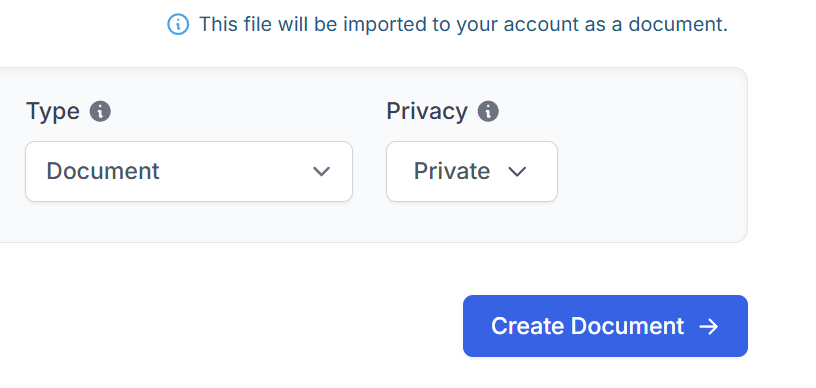
Click Create document to open the uploaded file in the editor. You can also change document settings by clicking on the dropdowns.
Step 3: Select Insert Image
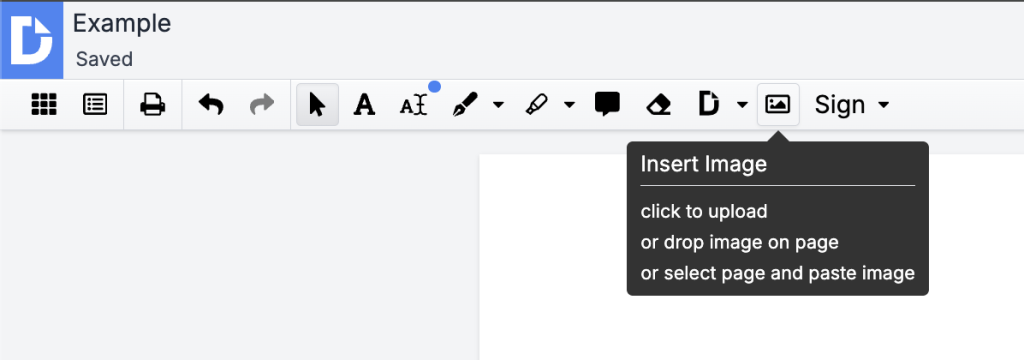
Choose Insert Image from the main toolbar. This is the action you use to add an image to PDF document.
Step 4: Easily upload your images
Upload an image file from your device. You can also drag a picture directly into the editor when you need to add an image quickly without extra steps.
Step 5: Place the image on the page
Move the image into the correct position on the page. Once the image is placed, check the spacing around all elements to ensure everything is aligned correctly and visually balanced.
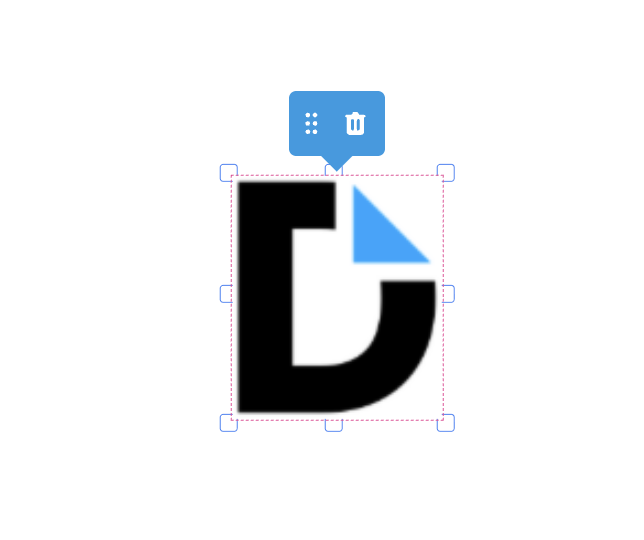
Step 6: Resize the image you have added
Click and drag the handles to resize the image. You can choose to maintain or change the aspect ratio.
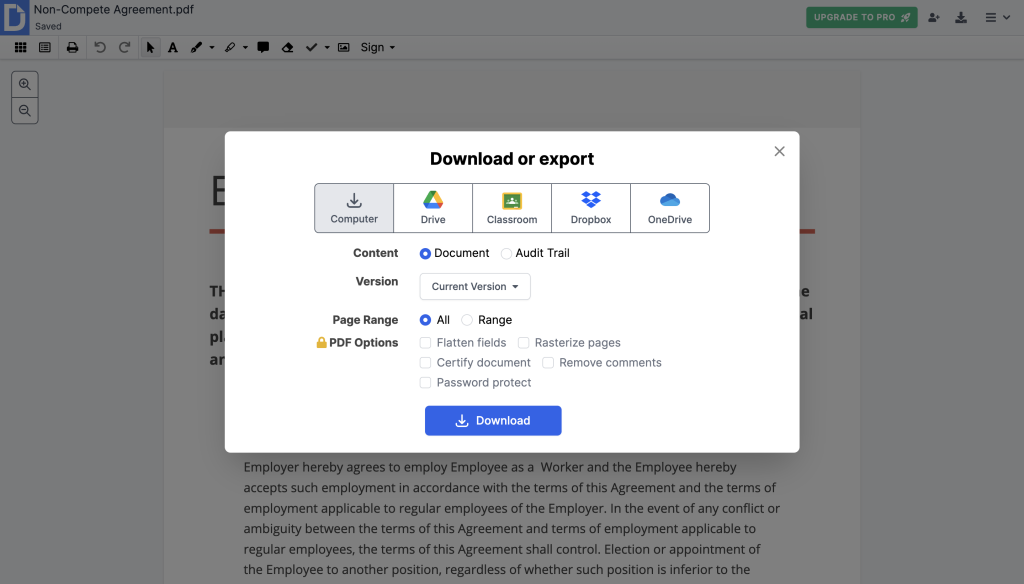
Step 7: Save, download, share, or send the document with inserted images
After the images are in place, choose the further action. DocHub allows you to download the file to your device, store it in the cloud, or share it with collaborators.
How do you edit images in PDF files after inserting them?
Adding the image is only part of the job: you may need to edit images in PDF files right after placement. The most common needs are moving the picture, changing its size, or even removing it.
Here are the practical editing options users care about most:
- Move images: PDF layout may require you to drag the image to the correct position on the page.
- Resize images: PDF content may require this action so the picture fits the design and keeps the document readable.
- Delete images: remove the image if it was added by mistake or replaced by a better version.
Design software may give you additional options to adjust transparency, so you can prepare the image to be inserted into your document.
If you prefer an illustrative view of the process of adding images to a PDF file, see our video guide:
Which image formats work best in DocHub?
Choosing the right format helps you avoid quality and file size problems.
Best formats for common tasks
- PNG: Ideal for logos, graphics, and images requiring transparency.
- JPG: Perfect for standard photo content.
- JPEG: Similar to JPG and widely used.
- GIF: Great for simple graphics.
- BMP and TIFF: Supported in many workflows, but can result in larger file sizes.
For most users, PNG and JPG are the safest bets. Use PNG when you need a clean, transparent background, and opt for JPG for photos to keep file sizes manageable. DocHub supports a variety of image formats and automatically performs the file conversion.
How can you keep the PDF files easy to use after adding images?
A great result is about keeping the file clean and easy to share. Here’s how to keep your PDFs practical and user-friendly:
- Compress large images before uploading to reduce file size.
- Choose the right image format for the task (e.g., PNG for logos, JPG for photos).
- Avoid oversized screenshots that disrupt the layout.
- Check the file size before your final download to ensure it’s manageable.
- Re-save the document after major edits, especially if you’re making multiple changes.
Why does this matter? PDFs with large images can be harder to share, slower to open, and less functional on mobile devices. A clean, lightweight PDF is almost always better than a bulky file with oversized graphics. To learn more about DocHub’s capabilities as a cross-device online PDF editor, visit our blog: PDF editing: Mobile vs. desktop for common user scenarios.
Why is DocHub useful for business document workflows?
For B2B teams, image editing is rarely a one-and-done task. A document might start as a DOC or DOCX file, get converted to a PDF, be edited in a browser, reviewed by teammates, and finally sent for signing or download. That’s where DocHub shines, enabling you to:
- Upload and edit documents online
- Manage forms with ease
- Work directly from Google Drive
- Share files seamlessly with your team
- Save progress securely in the cloud
- Keep your entire document workflow in one tool
This all-in-one approach is a game-changer for sales, operations, HR, finance, and support teams managing countless documents every week. Instead of juggling separate tools for editing, signing, and sharing, DocHub simplifies the process.
Final thoughts
DocHub supports your practical document management needs. Start with the document, choose the right image format, place the image carefully, and keep file size under control. That is what makes the final PDF useful, not just editable.
Get started with DocHub for free and build a faster, cleaner workflow for adding and editing images in PDF documents.
Glossary
Add image to PDF: Placing an image inside a PDF document.
Edit images in PDF: Changing the image after insertion, such as move, resize, or delete.
PDF editor: A tool used to edit PDF files, images, text, forms, and layout.
Image file: A file such as JPG, PNG, GIF, BMP, or TIFF.
Transparency: A setting that lets part of an image background remain invisible.
Updated PDF: The final saved version after edits are complete.
FAQ
Why would I add an image to a PDF?
Adding images helps make your documents more complete and professional. Whether it’s a logo on a contract, a product photo in a sales doc, or a screenshot in a guide, images can explain, identify, or enhance your content.
What image formats does DocHub support?
DocHub supports popular formats like PNG, JPG, JPEG, GIF, BMP, and TIFF. Whether you’re working with logos, photos, or graphics, you can easily upload and adjust them to fit your document.
How do I make an image look right in a PDF?
It’s all about placement and alignment. Resize the image if it’s too large, drag it carefully into position, and leave some white space around it for a clean look. If you’re adding multiple images, keep them aligned for a polished finish.
What are the file size limits for image upload to a file in DocHub?
While DocHub offers generous file limits, it’s important to be aware of them. Your file, including any inserted images, must be under 30 MB and no longer than 1,000 pages. Please note that files exceeding these limits cannot be processed.
- Why would you add an image to a PDF?
- How do you add an image to a PDF in DocHub?
- How do you edit images in PDF files after inserting them?
- Which image formats work best in DocHub?
- How can you keep the PDF files easy to use after adding images?
- Why is DocHub useful for business document workflows?
- Final thoughts
- Glossary
- FAQ